

Getting paid online should be the easiest part of selling. In practice, it is where many Odoo projects stall: which provider to pick, how webhooks work, why a payment shows as “authorized” but not “done”, and how those payments land in accounting. This guide walks through everything you need to integrate Odoo with a payment gateway, from choosing a provider to going live, with details based on the official Odoo 18 documentation.
Why payment gateway integration matters in Odoo
Odoo uses payment providers across the whole business, not just the online shop. Once a provider is enabled, customers can pay:
- eCommerce orders at checkout on your Odoo website
- Sales quotations and orders online, often as part of a signed quote
- Invoices directly from the customer portal or a payment link in the invoice email
- Subscriptions with recurring charges on a saved payment method
Because the same provider is used everywhere, a well-configured integration cuts manual collection work, speeds up cash flow and keeps your accounting tidy.
How an online payment flows through Odoo
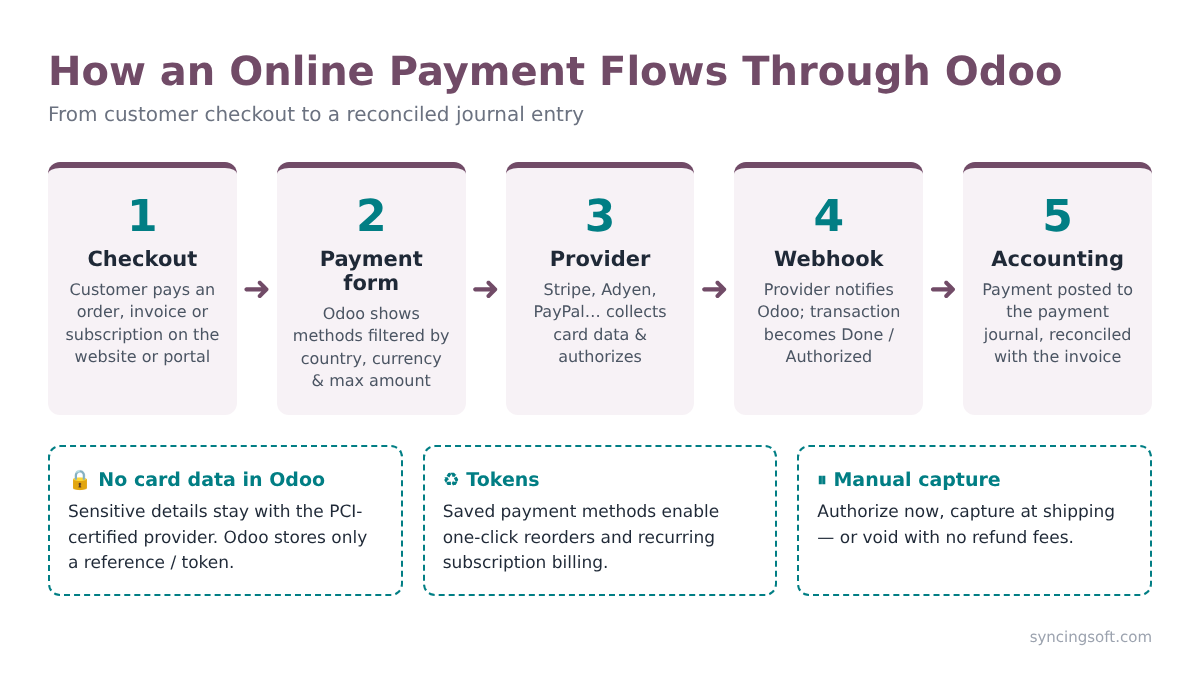
Under the hood, every payment follows the same path:
- Checkout: the customer reaches a payment form for an order, invoice or subscription.
- Filtering: Odoo shows only the payment methods that are available for the customer’s country, currency and the order amount.
- Provider processing: card or wallet data is collected by the provider, either in an embedded form on the Odoo page (Stripe, Adyen, Razorpay and others) or after a redirect to the provider’s own page (Mollie, Buckaroo, Mercado Pago and others).
- Notification: the provider sends the result back to Odoo, usually through a webhook. Odoo updates the transaction state to Done, Authorized, Pending, Cancelled or Error.
- Accounting: a payment is created in the provider’s payment journal and matched to the invoice.
Security and PCI compliance
Odoo never stores card numbers. Sensitive data is handed to the certified provider, and Odoo keeps only a reference or token. Odoo itself is not PCI DSS-certified because it does not store cardholder data or process payments. For you as a merchant, this usually means filling in the shortest Self-Assessment Questionnaire (SAQ) with your provider to get your Attestation of Compliance. Odoo should not be listed as a processor in that SAQ.
Payment providers supported out of the box
Odoo 18 ships with connectors for Adyen, Amazon Payment Services, AsiaPay, Authorize.Net, Buckaroo, Flutterwave, Mercado Pago, Mollie, Nuvei, PayPal, Razorpay, Stripe, Worldline and Xendit. It also includes bank-based options (Wire Transfer and SEPA Direct Debit) and a Demo provider that creates dummy payments for testing.
How to choose the right provider
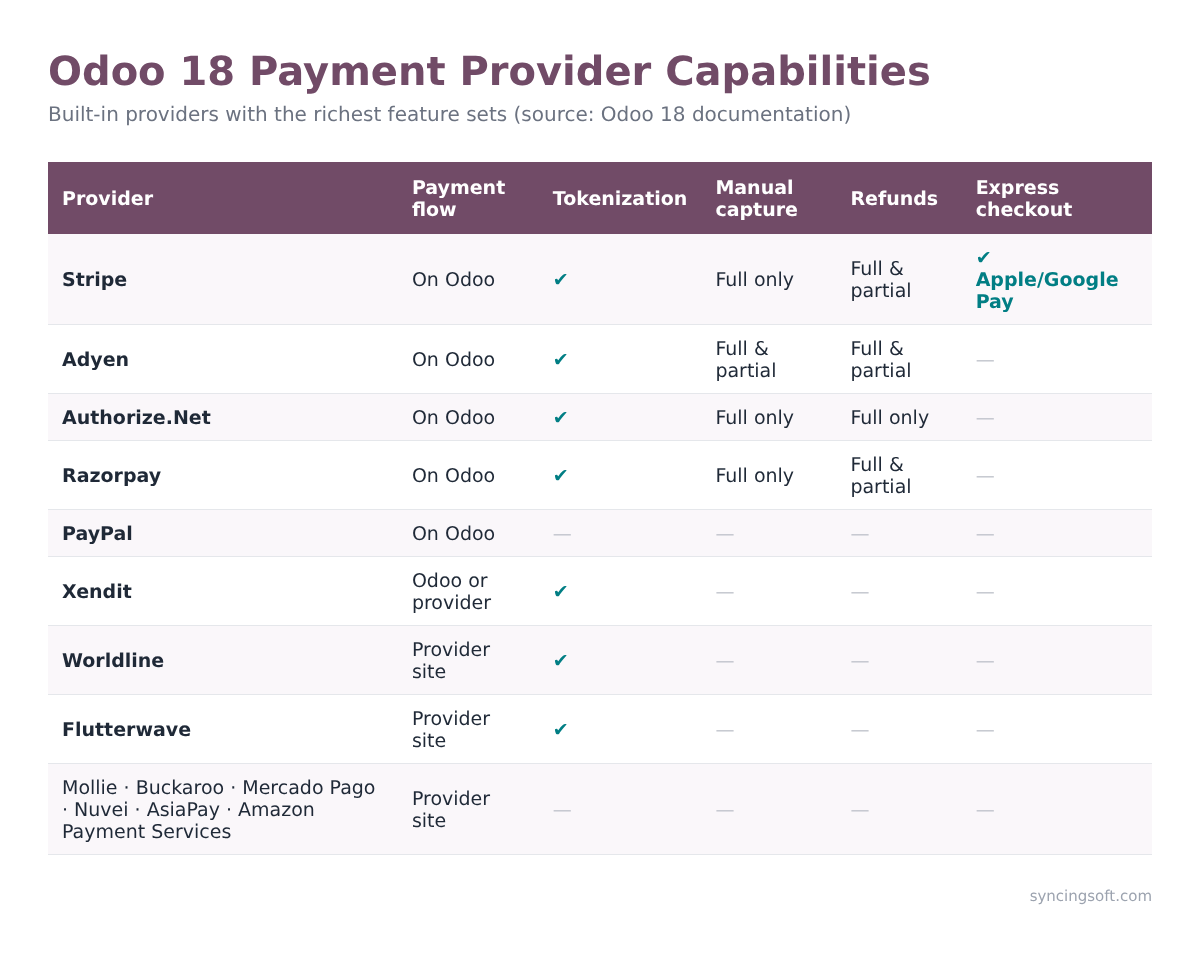
- Geography and currency: each provider supports specific countries and currencies. Razorpay is built for India, Mercado Pago for Latin America, Xendit for Southeast Asia, Flutterwave for Africa, and Mollie and Buckaroo are strong in Europe. Stripe and Adyen cover the widest range.
- Subscriptions: recurring billing needs tokenization. Stripe, Adyen, Authorize.Net, Razorpay, Worldline, Flutterwave and Xendit support it. PayPal in Odoo does not.
- Ship-then-charge workflows: if you only want to charge when goods ship, choose a provider with manual capture. Adyen supports partial capture; Stripe, Authorize.Net and Razorpay capture the full amount only.
- Refunds from Odoo: Adyen, Stripe and Razorpay support full and partial refunds from Odoo. Authorize.Net supports full refunds only.
- Conversion: Stripe supports express checkout with Apple Pay and Google Pay, which takes shoppers from cart to confirmation in one click.
- Fees and payouts: compare transaction fees, currency conversion margins and settlement times. These affect your margins more than any technical feature.
Step-by-step: setting up a payment gateway in Odoo
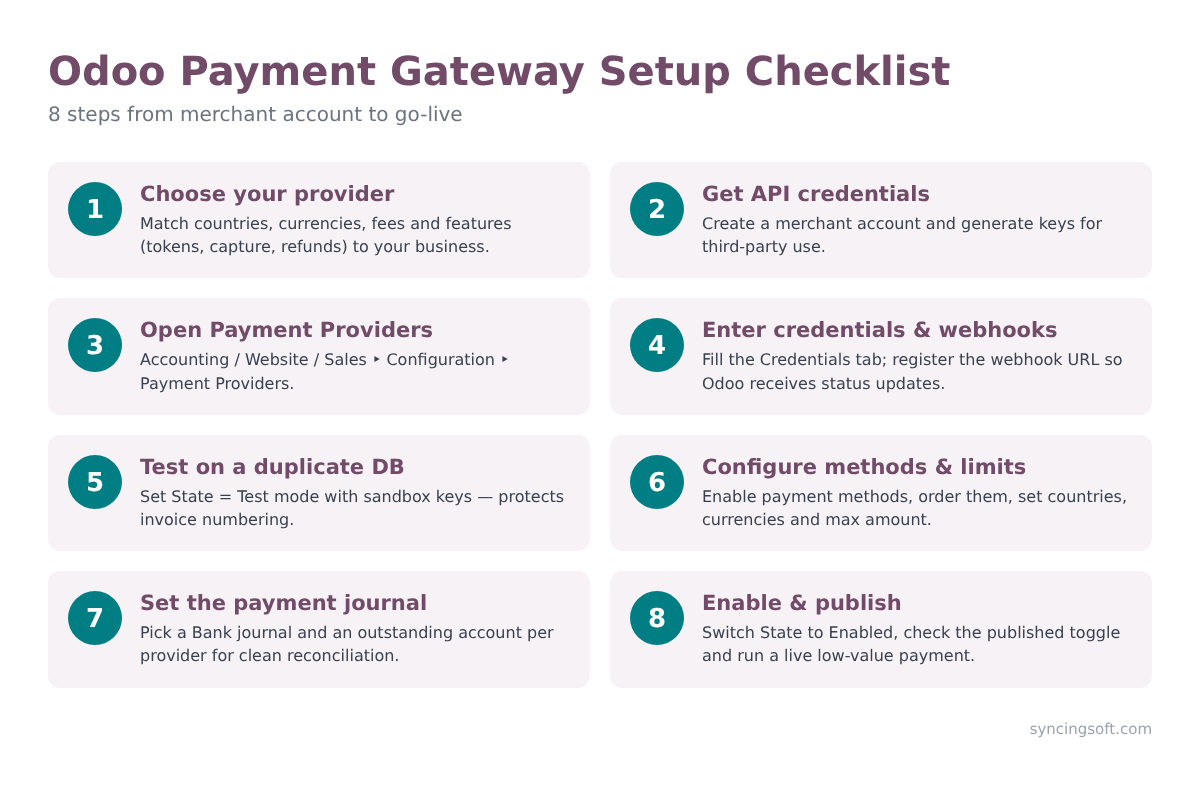
1. Create your merchant account
Sign up on the provider’s website, complete business verification (KYC), and generate the API credentials for third-party use. Depending on the provider, these may be publishable and secret keys, a merchant ID, or a client ID and secret.
2. Open the Payment Providers menu
In Odoo, go to Accounting ‣ Configuration ‣ Payment Providers. The same list is also available under Website or Sales ‣ Configuration. Select your provider; if the module is not installed, click Install first.
3. Enter credentials and webhooks
Fill in the Credentials tab. The fields depend on the provider. For providers that use webhooks, register Odoo’s webhook URL in the provider dashboard (Stripe can do this automatically with its Connect onboarding and Generate your webhook button). Without webhooks, payments can stay stuck as pending in Odoo even though the customer was charged.
4. Test before you go live
Set the State field to Test Mode and use the provider’s sandbox keys. Odoo recommends testing on a duplicate or test database to avoid gaps in invoice numbering. In test mode, the provider stays unpublished so website visitors will not see it.
Test at least: a successful payment, a declined card, a 3-D Secure challenge, a refund, and (if used) a saved card for a second purchase or subscription renewal.
5. Configure payment methods and availability
In the Configuration tab, click Enable Payment Methods to switch cards, wallets and local methods on or off, and drag them into the order you want customers to see. You can also limit availability by:
- Countries and currencies: methods are hidden when the customer’s country or currency is not supported.
- Maximum amount: hide the provider above a set order value (leave 0.00 for no limit).
Tip: if a method does not appear on the payment form, turn on developer mode and click the bug icon next to Choose a payment method. Odoo shows an availability report explaining why each provider or method is hidden.
6. Turn on the features you need
- Allow Saving Payment Methods for tokenization, one-click repeat purchases and subscriptions. Customers can manage saved methods from their portal.
- Capture Amount Manually to authorize first and capture later with the Capture Transaction button on the order or invoice, or release funds with Void Transaction. Authorizations expire after a period set by the provider.
- Allow Express Checkout for Apple Pay and Google Pay buttons on the cart (prices shown always include taxes).
7. Set up the payment journal
Each provider needs a Payment Journal, which must be a Bank-type journal. By default Odoo uses your Bank journal. A cleaner approach is a dedicated journal or outstanding account per provider, so you can see exactly what Stripe or PayPal owes you before the payout reaches your bank.
8. Enable and publish
Switch the State to Enabled. The provider is published on your website automatically. Make one small live payment and refund it to confirm the full round trip.
Getting the accounting right
There are two kinds of online payments from an accounting point of view: money that lands directly in your bank account, and money held by a third-party provider that pays you out later, net of fees. For the second kind, a common setup is:
- Customer payments are posted to the provider’s outstanding receipts account and reconciled with invoices automatically.
- When the provider pays out, the bank statement line is matched against the outstanding balance.
- Provider fees are booked to a bank-fees expense account during reconciliation.
Agree on this with your accountant before going live. Some providers, such as Stripe and Adyen, can also be added as bank accounts for statement sync, which is a separate step from setting them up as payment providers.
Building a custom payment gateway connector
If your bank or local provider is not supported, you can build a custom module that plugs into Odoo’s payment framework. At a high level, a connector:
- Adds a new provider code and its credential fields by extending the
payment.providermodel. - Extends
payment.transactionto send the payment request (redirect form, embedded form or direct API call) and to process the provider’s response. - Exposes HTTP controllers for the return URL and webhook, verifies their signatures, and updates the transaction state.
- Optionally supports tokens, refunds and manual capture.
- Defines the supported payment methods, countries and currencies.
The cleanest starting point is to study an existing provider module from the Odoo source, such as payment_stripe or payment_mollie, for the exact Odoo version you run. Method names in the payment framework change between versions, so always build and test against your target version.
Common problems and how to fix them
- Provider not visible on the website: check that the State is Enabled, the provider is published, and the customer’s country, currency and amount are within limits. Use the availability report.
- Payment charged but stuck in Pending: the webhook is usually missing or failing. Check the URL, signing secret and that your server is reachable over HTTPS.
- Wrong base URL in redirects: make sure the
web.base.urlsystem parameter matches your public domain, especially behind a proxy. - Invoice numbering gaps after testing: always test on a duplicate database.
- Payments not reconciling: check the payment journal and outstanding account on the provider, and make sure the payment reference matches the invoice.
- Card declined in test mode: use the provider’s official test cards and sandbox keys, not live ones.
Best practices checklist
- Offer the local payment methods your customers actually use, not just cards.
- Turn on tokenization if you sell subscriptions or have repeat buyers.
- Use manual capture for made-to-order, pre-orders or high-value goods.
- Keep API keys in Odoo only, rotate them periodically, and never share them by email.
- Monitor failed and pending transactions weekly in Payment Transactions.
- Re-test your payment flow after every Odoo upgrade.
Conclusion
Odoo’s payment framework gives you a secure, PCI-friendly way to collect money across eCommerce, sales, invoicing and subscriptions. The technical setup takes minutes; the real work is choosing the right provider, testing thoroughly, and designing accounting that reconciles itself. Get those three right and online payments become a hands-off part of your operations.
Need help integrating Odoo with Stripe, Adyen, PayPal, Razorpay or a custom gateway? The Syncing Soft team can design, build and test your payment integration end to end. Get in touch to discuss your project.